Understand the check inside the manual routine
Sending a report by hand gives a manager a chance to review the figures before colleagues see them. In this illustrative CRM workflow, a sales manager opens the summary every Friday, checks the deals, and emails the team. The product team adds scheduled delivery. Before enabling it, the manager needs to know what will reach those recipients without the usual review.
That concern is easy to miss when you examine only the clicks. A day, a recipient list, and a Save button make a short setup flow, but leave questions about the date range and email content. Introducing the feature requires a way to check the future send and correct its settings before it starts.
Begin with people who already have this job. A manager repeating the same email can encounter the scheduling option in the report or after a manual send. Someone who never shares reports has no equivalent reason to configure it. Also check that the report contains data, the person has permission to send, and they know the intended recipients. If preparation is missing, help them complete it before inviting them to set up a schedule.
Introduce scheduling from the current report
The invitation can open a schedule for the report the manager is already using. In an example interface, “Send this report on a schedule” identifies the task. “Choose a day and recipients. Check a test email before the first scheduled send” explains the next step. The action is “Set up delivery.”
This gives the manager enough information to decide whether to proceed. Details about the email and date range belong in setup, where they can inspect those choices. Carry the selected report into the form so the manager does not have to find the same summary again.
Let the manager inspect a send before enabling it
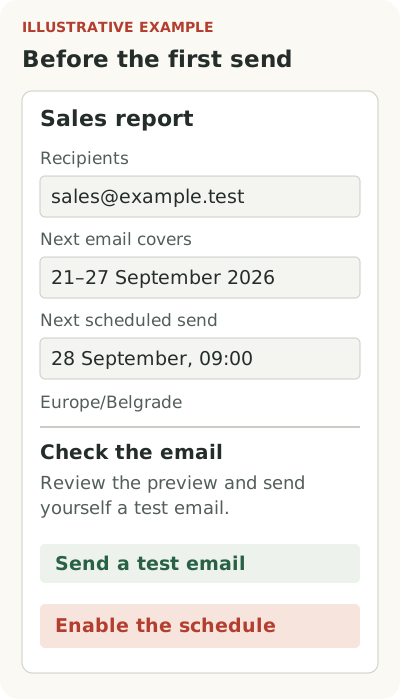
The setup form should let the manager check recipients and the reporting period, then preview an email using current figures. Show the actual dates for the next scheduled report. If Monday’s email covers the previous week, put that week beside the period rule. The manager can compare it with the range they used to choose by hand.
A test email lets them check the address, layout, and content before automatic delivery begins. After the test, leave room to change recipients or dates and try again. Sending a test does not enable the schedule. That is a separate action whose saved state needs confirmation.
An interruption also needs a clear return point. A phone call might pull the manager away after they enter recipients. On returning, they should see the saved values and the step left to finish. If the product saves only part of the form, make that limit visible so they do not assume the schedule is running or repeat the entire setup.
Confirm the next scheduled send
Once the manager saves, bring together the details they need before leaving the CRM: recipients, reporting period, next send time, and where to pause delivery. Keep these available on a later visit. A toggle click cannot establish that saving succeeded; display the state the product recorded.
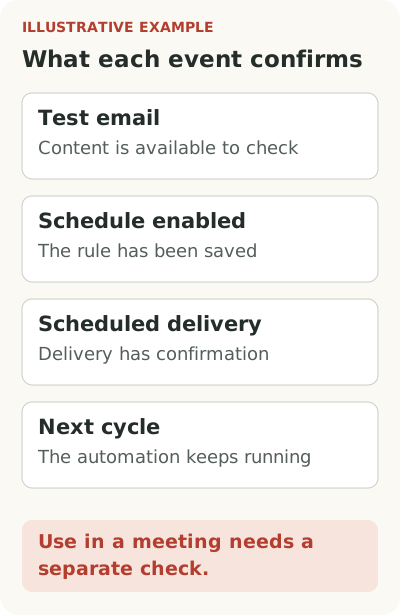
Track the first scheduled delivery separately from the test and the enabled rule. A delivery confirmation establishes that the email arrived within the limits of what your system can verify. It does not establish that colleagues read the summary or used it in a meeting. Those are further questions about the team’s work.
If the scheduled send fails, explain the cause and provide a route to fix it. The manager has already configured the feature and expects an email. They need the rule’s status, details of the failed attempt, and a way to restore delivery at this point.
Review the settings after another work cycle
The first email may reveal that delivery runs before a data refresh or that one recipient needs a different summary. Keep the rule accessible from the report so the manager can change its timing, edit recipients, and send a fresh test. Help at this stage should answer the new configuration question.
A successful next delivery confirms that the automation continues to run. To assess usefulness, talk to the people who use the report. Find out which figures they needed, what was missing, and whether the manager still sends a corrected version by hand. A different data selection may matter more to them than further guidance on scheduling.
Include this follow-up in the feature launch. It gives the product team separate observations: the person considered the invitation, checked an email, enabled the rule, received a scheduled report, and found a use for it in their work. Those observations help identify what to change next, beyond the number of clicks on the release announcement.